The same property surveying firm kept years of files on a Synology NAS and wanted them in SharePoint, alongside the rest of their Microsoft 365. Most of it was historical job folders, and a lot of those folders were full of site photos.
I’ll be upfront about how I did it. I’m not a career migration engineer, so I worked from Microsoft’s documentation, technical guidance and a lot of careful troubleshooting, with AI assistance where it helped. The way the problems got solved is the useful part of this story, so I’ve kept it in.
Working remotely.
Everything was done remotely: the NAS through Synology DSM, and the migration itself through an on-site computer that ran Microsoft’s migration agent.
1. Understanding the source.
Before touching a single file, I went through Storage Manager to understand the setup: the storage pool, the volumes and the two 3.6 TB drives in RAID 1. Then I looked at how the files were organised, a folder per year and a folder per job, many of them heavy with images.
2. Auditing with PowerShell.
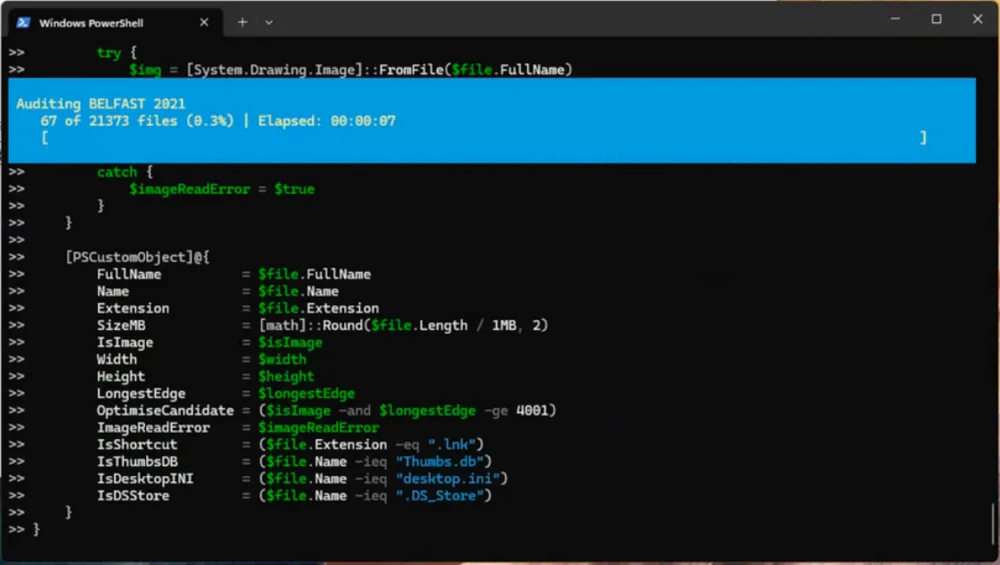
A migration can’t treat everything as one big pile of files, so I wrote a PowerShell script to find out what was actually there. It recorded each file’s name, extension and size, plus the width, height and longest edge of every image. It flagged photos over 4,000 px as candidates for optimising, and it marked shortcuts, Thumbs.db, desktop.ini and .DS_Store files that didn’t need to move. One year’s folder alone held 21,373 files.
3. Optimising the photos.
The audit turned up 8,202 images worth optimising. A second script resized and recompressed them, logging the size, dimensions and JPEG quality before and after for each one, along with a status and any error, so nothing was skipped without a record. Large image libraries make a migration heavier and slower, which is why this step came first. I haven’t put a figure on the total space saved yet, because that needs the final audit.
4. Running it in batches.
I used Microsoft’s SharePoint Migration Manager, with the work split into batches of up to ten tasks, each batch prepared as a CSV file, and a running record of which tasks had finished. The on-site machine had to stay on while tasks ran, so it was left running overnight with the session locked rather than signed out, because the agent stops if the machine or its process goes away.
5. When batches failed.
Not every task worked first time. In one review I found that several tasks in a batch had failed from a certain point onwards. I went through which had succeeded and which hadn’t, looked at whether the agent had been interrupted, and built a new batch containing only the unfinished tasks.
I also found that some failed tasks had rerun on their own. So before resubmitting anything, I checked the task history, rather than sending the whole lot again and duplicating content that was already in SharePoint. Keeping track of where a long-running job actually stands is most of the skill in a migration like this.
6. Checking the result.
By early October, every task showed as complete, including the earlier failures and some extra historical folders. A green status in Migration Manager isn’t proof on its own, though. The last step is checking SharePoint against the source, and that reconciliation is what I’d sign off on, rather than the status column.
What I’d do the same way again.
- Audit before moving anything, so the clean-up happens on the old system rather than the new one.
- Keep a record of every batch and task, so a failure means rerunning a handful of tasks instead of starting over.
- Never resubmit blindly. Check what already ran first.