For a property surveying and valuation firm, every new job meant the same routine: take the client and property details, find the right Word template, type the details in, name the file and save it in the right folder. None of it was hard, but it was repetitive, and it was easy to save something in the wrong place.
This project wasn’t really about creating a Word file automatically. It was about turning structured information into a document system the firm could rely on, where the flow knows both what to create and where it belongs.
How it works.
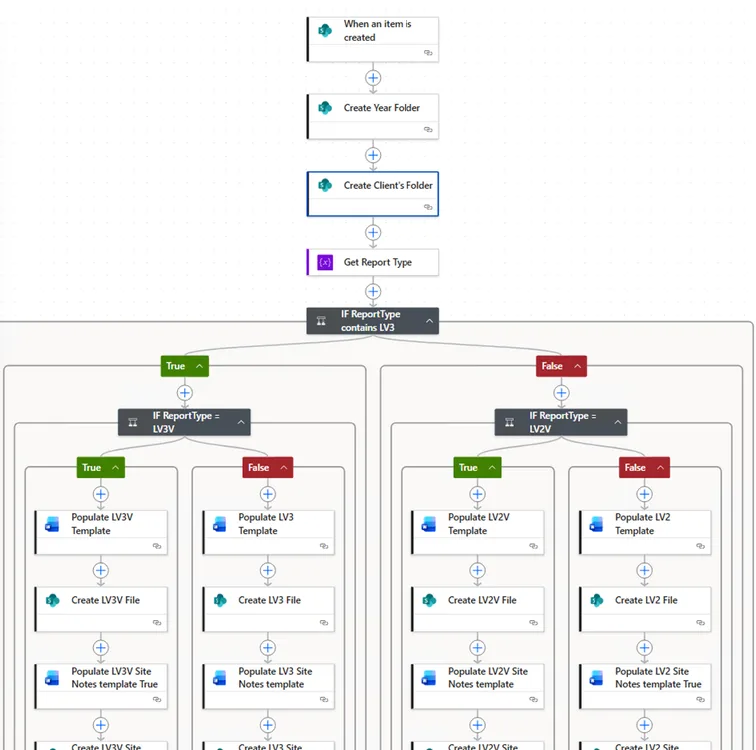
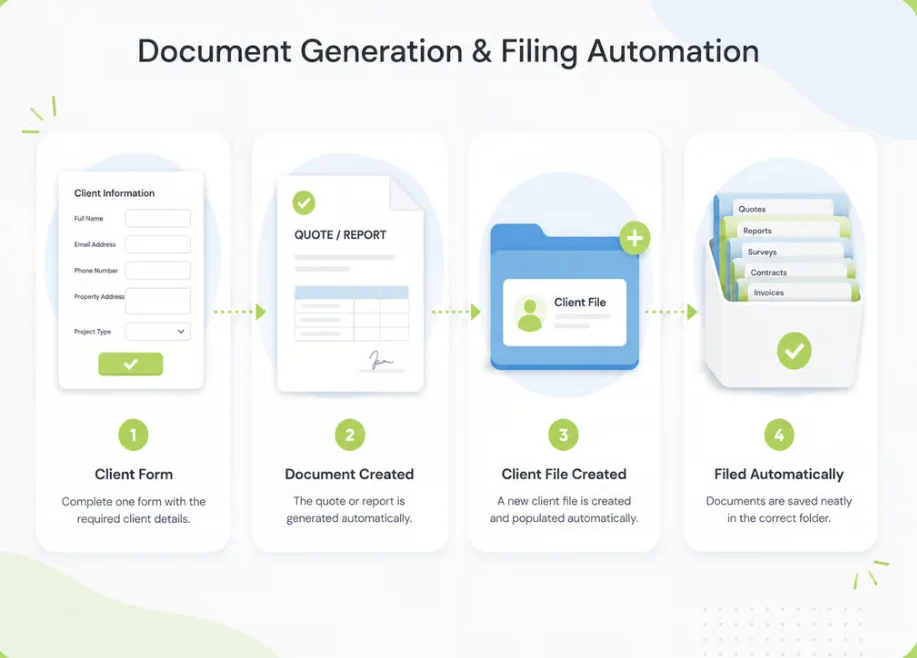
- A new job goes into a SharePoint list with the client, property and report details. That’s the only place the details are typed.
- The flow reads the fields and builds the folder path for the job.
- Conditions decide which documents are needed. The flow branches by report type, and each branch fills in its own report template and its own site notes template.
- The Word files are generated with the details filled in, and named from the report type and file number.
- Everything is saved straight into the right SharePoint folder.
The filing problem.
The most interesting part was where the files should go. In an earlier version, the main Client Reports location held more than 30 town folders, and the flow had to file each document in the matching one. Building a separate branch for every town would have worked, but it would have been a nightmare to maintain.
Instead, the flow takes the town chosen in SharePoint and uses that value directly in the folder path, so one action files into any of the 30-plus folders, and a new town needs no change to the flow at all. Later versions moved to a year, area and client folder structure, built the same way.
Getting the address right.
Property addresses came in as separate SharePoint fields, and they needed to read the same way everywhere. I used a Compose action to join the street address, town or area and postcode into one consistent line, which is then reused in the documents and the file names.
The result.
Setting up a job’s documents now takes minutes instead of hours, which by my estimate gives the team back about a working day a week. Every report is named the same way and filed in the same structure, so anyone in the firm can find it, and the property details are typed once instead of copied into each document.
It also built on the NAS to SharePoint migration, which gave the firm’s files a proper home in SharePoint in the first place.
“Corlia, thank you for all your hard work. You have done a wonderful job so far and I’m delighted. This is going to help me immensely.”